Using the Prior Period Adjustment Control
Note: This functionality is only available in systems licensed for FULL mode.
 Use the Prior Period Adjustment (PPA) control to view and optionally approve or reject PPA records for your system, within a selected time range. You can create up to eight instances of this control. See Prior Period Adjustments in the CygNet Measurement Concepts topic for more information.
If data is edited or if previously missing data or data with a higher data quality arrives after closing a period, a prior period adjustment may optionally be created. Administrative tasks are required to configure the manner in which PPAs are handled. See Configuring Systems Options for more information.
Contiguous edits made to a single device generate a single PPA, regardless of the number of specific edits made, as long as all of the edits in that edit instance are made to the same device.
Eligible records for display in this control include PPAs generated for Station Group Nodes, Gas Meter Nodes configured to also act as stations, and Liquid Device Nodes with support for periodic metering data.
Once generated, PPA records can be viewed in the control, where they can either be approved or rejected for export. PPA records approved for export will be saved in order to provide notification to production accounting and other downstream users of the data that closed values have been modified. See Approving or Rejecting PPAs for more information.
The PPA control views all data in Local time (L), based on the time the PPA was created. Each row of the data grid represents a PPA record. Each column represents a data field. The control toolbar and the context menu allow you additional options to view and manage PPAs.
You must have proper security authorization to perform these actions. See FMS Security (CMDSYS and PPA security events) for information about configuring security access for the Prior Period Adjustment control.
See CygNet FMS PPA Control for more information about configuring this control in CygNet Studio.
See FMS Explorer User Interface for more information about the FMS Explorer user interface.
Viewing PPA Data
Use the Prior Period Adjustment control Options pane to select what data to show in the grid. The pane can optionally be displayed or pinned to the left side. (No Chooser pane is necessary for this control, as all PPAs within the specified time period will be displayed.)
Options
In the Session section of the Options pane, define the values for the data you would like to view.
|
Prior Period Adjustment control |
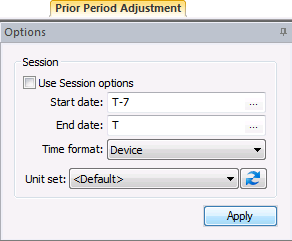
PPA control options are as follows.
| Option | Description |
|---|---|
| Session | |
|
Use Session options |
Click the check box to select/clear the option to Use Session options instead of entering a time window and time format. Notes: The Use Session options check box is selected by default for Data controls (Alarm, Configuration, History Graph, History Grid, and Raw Data). The Use Session options check box is cleared by default for Summary controls (Dashboard, Exceptions), Reports controls, and Admin controls (PPA, Balance, Jobs; not applicable to Close Period). |
|
Start date |
Date selections in this control are based on Local time (L), relative to the client computer. Select the starting date, unless Use Session options is selected. Type the date into the text box or click ... to Select Date. See Selecting Date and Time for more information. |
|
End date |
Date selections in this control are based on Local time (L), relative to the client computer. Select the ending date, unless Use Session options is selected. Type the date into the text box or click ... to Select Date. See Selecting Date and Time for more information. |
|
Click to select the desired time format from the drop-down menu, unless Use Session options is selected. Note: Selection of Time format will only affect values in the Start Date/Time and End Date/Time columns in the grid. All other values in the PPA control, including all other date/time columns, will remain in Local time (L). Options are as follows.
Default value is Device time. |
|
|
Unit set |
Select a unit set in which to view the data. Options appear in the drop-down menu, which is populated by the unit sets defined in the service, and includes a default unit set. |
|
|
Refresh the available unit set list. |
|
Apply |
Click to Apply the changes made through the Options pane. |


Columns
PPA data grid columns are fixed in position but can be adjusted for viewing in the following ways.
- Click on a column header to sort the data grid view based on that field, in either ascending or descending order.
- Hover over a fixed column edge to display an icon to reset column width. Drag the column to the desired width.
Filtering
In addition to sorting data in ascending/descending order based on a column parameter, filters can be set for each data field. Click on a column header to access a directional arrow, and then click on the arrow to access the option to set or clear filters by the selected field. Select Set Filter to access the Set Filter dialog box, to enter filter parameters specific to the field selected. Select Clear Filter to clear the existing filter set for the selected field.
Columns in the grid represent the following fields.
| Field | Description |
|---|---|
|
Node Name |
Name of the Node associated with the record, either a station or a Node supporting liquid periodic data Click on the column header to sort the displayed data (in ascending or descending order) based on Node Name. |
|
Node Description |
Description of the Node associated with the record Click on the column header to sort the displayed data (in ascending or descending order) based on Node Description. |
| State | The state of the PPA (e.g. Ignored, Pending) |
|
Start Date/Time (t) |
Start date and time of the edited data Note: Although data in the PPA control is always viewed in Local time (L), the time format (t) in which you wish to view the date/time range of the data can be selected on the Options pane; this selection does not affect your view of other data displayed in the grid. |
|
End Date/Time (t) |
End date and time of the edited data Note: Although data in the PPA control is always viewed in Local time (L), the time format (t) in which you wish to view the date/time range of the data can be selected on the Options pane; this selection does not affect your view of other data displayed in the grid. |
|
Volume |
The updated volume value |
|
Energy |
The updated energy value |
|
Mass |
The updated mass value |
|
Volume - Delta |
The difference between the updated and previous volume values |
|
Energy - Delta |
The difference between the updated and previous energy values |
|
Mass - Delta |
The difference between the updated and previous mass values |
|
User Created |
Name of the user who created the PPA |
|
Date/Time Created (L) |
Time the PPA was created, always in local time (L) |
|
Category Created |
The category assigned at the time the PPA was created |
|
Comment Created |
The (optional) comment written at the time the PPA was created |
|
User Reviewed |
Name of the user who reviewed the PPA |
|
Date/Time Reviewed (L) |
Time the PPA was reviewed, always in local time (L) |
|
Category Reviewed |
The category assigned at the time the PPA was reviewed |
|
Comment Reviewed |
The (optional) comment written at the time the PPA was reviewed |
|
Date/Time Exported (L) |
Time the PPA was exported, always in Local time (L) |
Managing PPA Data
Toolbar
Use the Prior Period Adjustment control toolbar to access options to manage the data you are viewing. See Menus and Toolbars for more information.
|
Prior Period Adjustment control toolbar |

The following options appear on the toolbar; unavailable buttons appear dimmed.
| Option | Description |
|---|---|
|
|
Click to Refresh the control view. Note: The Refresh button will not take into account changes made through the Options pane that have been selected but not yet applied. See Refresh Button for more information. |
|
|
[The Save button is not available on this control.] |
|
|
[The Cancel button is not available on this control.] |
|
|
Click to Open and view the control as a .csv file. |
|
|
[The Print button is not available on this control.] |
|
|
Click to Export the contents of the control to a .csv file. |


Context Menu
Use the context menu to access options to approve PPAs for export, reject PPAs for export, set the Session Node, or adjust decimal precision in the display.
Right-click on a record row to access the following options.
| Option | Description |
|---|---|
|
Approve for export |
Click Approve for export to approve the Prior Period Adjustment record. See Approving or Rejecting PPAs for more information. |
|
Reject for export |
Click Reject for export to reject the Prior Period Adjustment record. See Approving or Rejecting PPAs for more information. |
|
Set as Session Node |
Click Set as Session Node to set the selected Node as the Session Node. Alternatively, press Ctrl+Shift+S to set the Session Node using a keyboard shortcut. See Session Node and Using Keyboard Shortcuts for more information. |
|
Decimal precision |
Click to select Decimal precision for the display from 0 - 10 decimal places. Default value is 7. |
More:


